
How to View and Update a Property
Open a service location to review its details or correct its address information.
Who this is for: Owner, Office Manager.
Before you begin
Section titled “Before you begin”You need an existing property. See How to Create a Property if you haven’t added one yet.
Open a property
Section titled “Open a property”Go to Properties in the left navigation, then click View / edit next to the service location you want to open.
Review the property details
Section titled “Review the property details”The property page shows its name, full address, and the customer it’s linked to.
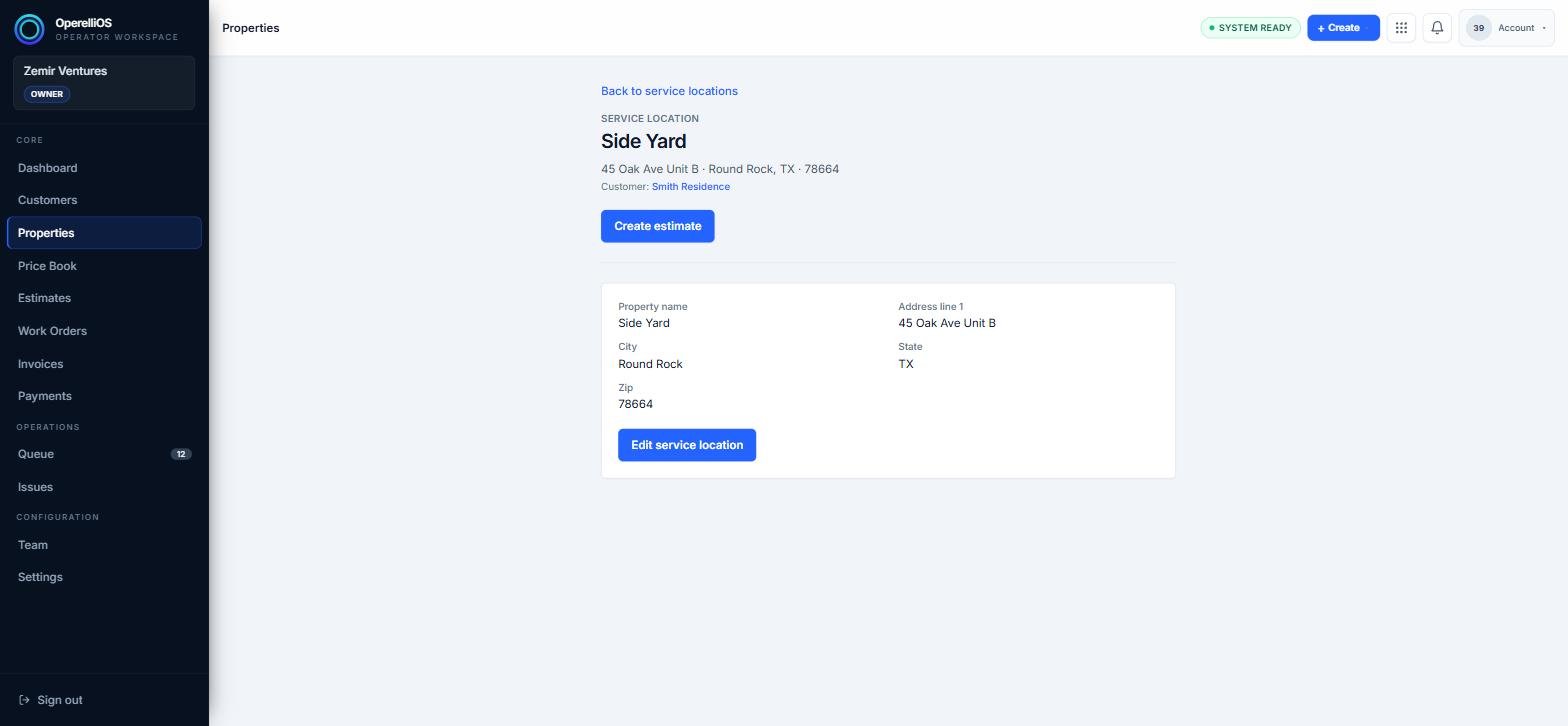
A service location’s detail page, showing its address and linked customer.
Edit the property
Section titled “Edit the property”Click Edit service location to make the property name, address, city, state, and zip fields editable.
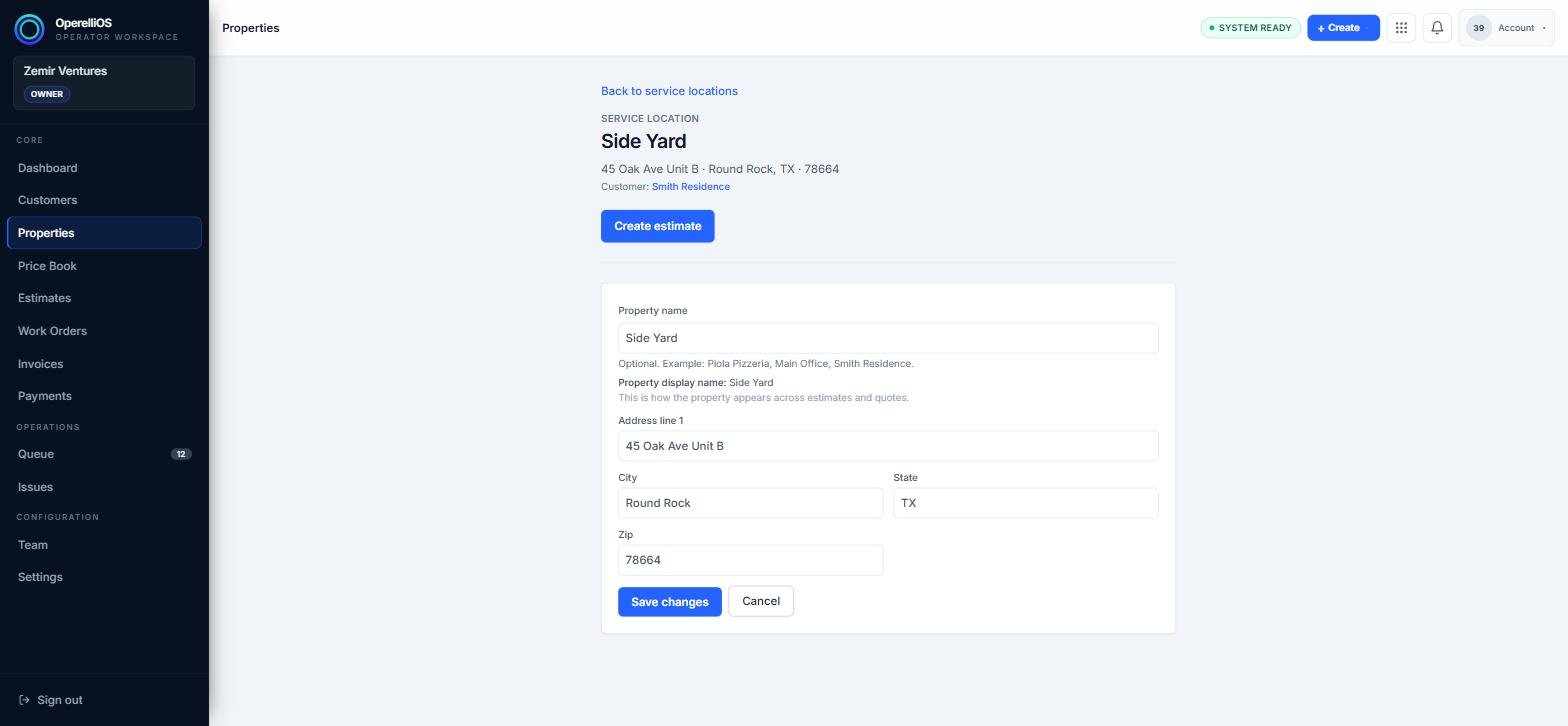
The property’s editable form, with name and address fields open for changes.
Save your changes
Section titled “Save your changes”Click Save changes to apply your edits, or Cancel to discard them.
Expected result
Section titled “Expected result”The property’s updated details are reflected on its detail page and anywhere it’s referenced, including the linked customer’s profile.
Common issues
Section titled “Common issues”I can’t change which customer a property belongs to
This isn’t currently supported from the edit form. Create a new property under the correct customer instead.