
Understanding the Price Book
The Price Book is where you store reusable service items — each with its own name, pricing, cost, and margin — so your team can quote and bill consistently instead of re-entering details on every job.
Who this is for: Owners or staff responsible for setting service pricing and building estimates.
Before you begin
Section titled “Before you begin”- You are signed in to your OperelliOS workspace.
- You can open the Price Book from the left navigation.
-
Open Price Book from the left sidebar navigation.
-
Review the services list. Each row shows the item name and optional code, category, unit, price, cost, computed margin, taxable status, active/inactive status, and last-updated date.
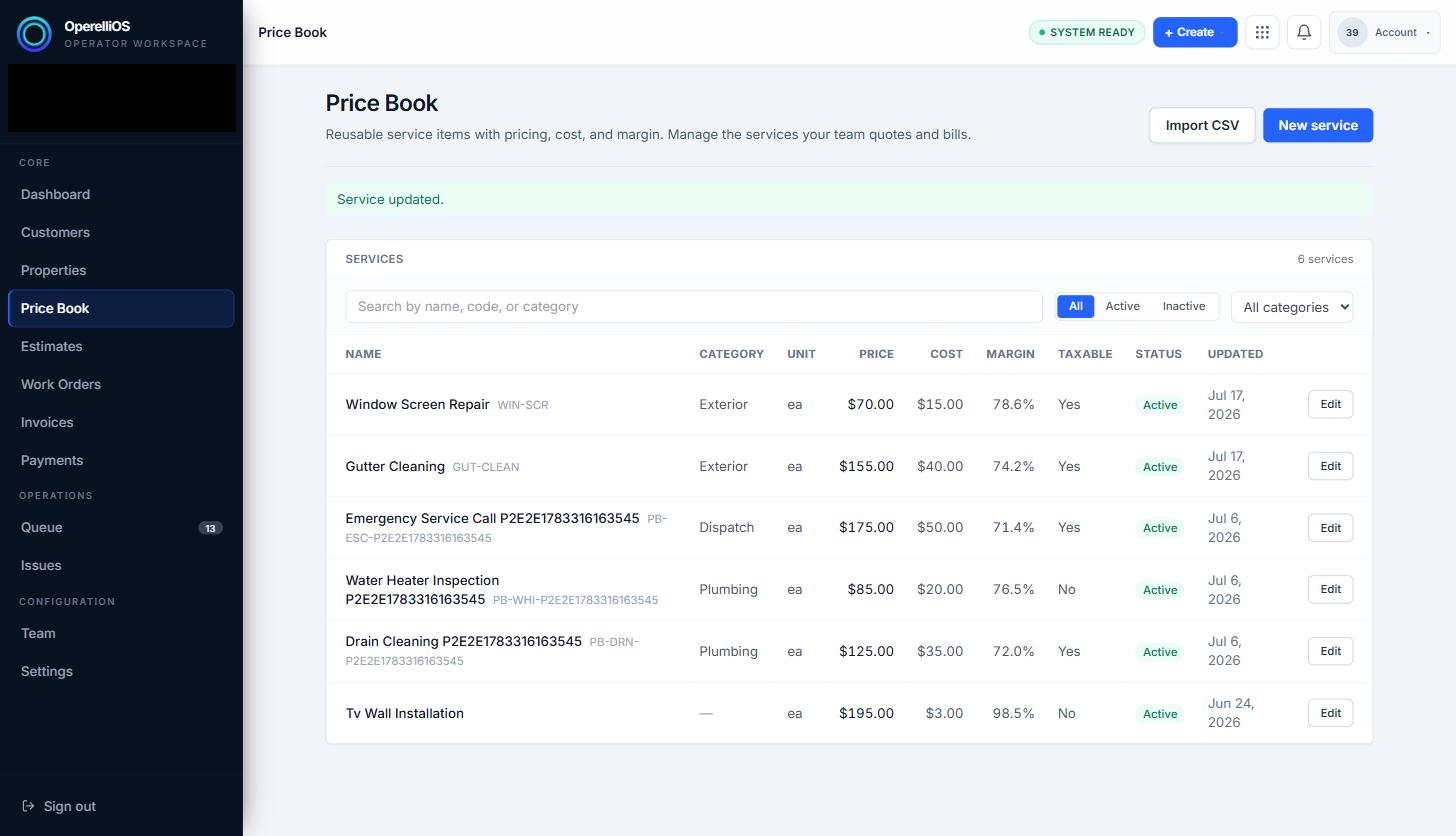
The Price Book list. Business identity in the sidebar is redacted in this capture.
-
Use the search box, the All / Active / Inactive toggle, and the category dropdown at the top of the list to narrow down items. See How to Find a Price Book Item.
-
Use New service to add an item, or Edit on any row to update one.
Expected result
Section titled “Expected result”You can see every reusable service item in the workspace, along with its pricing and status, in one list.
Common issues
Section titled “Common issues”- If the list looks empty, check that the Active / Inactive / All toggle is not filtering out the item you expect to see.
- Category is optional on an item, so some rows may show no category value.