
How to View and Update a Work Order
Open a Work Order to review its details, inspect the scheduling surface, and save an edit to its Scope of Work when that control is available.
Who this is for: Owners or staff who update observed Work Order fields before or during delivery.
Before you begin
Section titled “Before you begin”- An existing Work Order.
- Permission to update Work Orders in your workspace.
-
Open the Work Order you want to update.
-
Open the Schedule surface (or Assign surface, when present) and review the visible fields. Assignment may remain unassigned until you are ready to start the job.
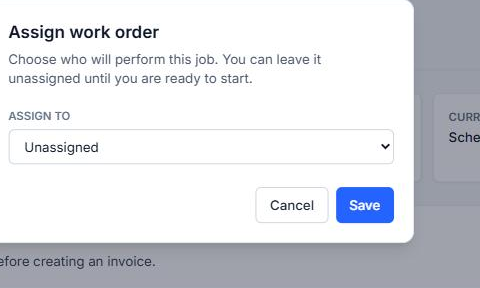
The scheduling and assignment surface shows date, time, priority, and assignee fields. A date or assignee field is not evidence of a full dispatch platform.
-
Select Edit next to Scope of Work, update the text, and select Save.
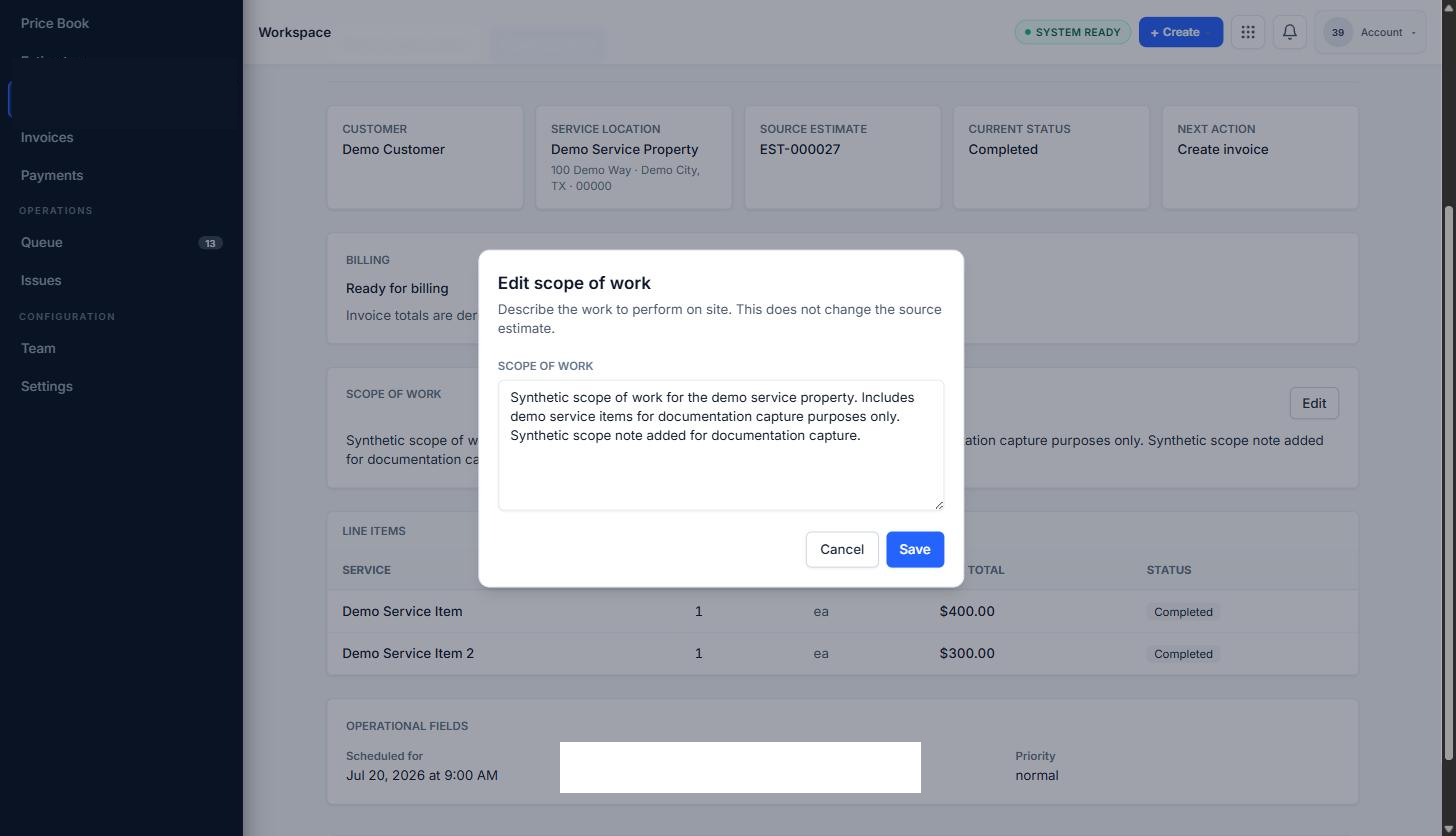
The Edit scope of work dialog shows an editable Scope of Work field and a Save control. Editing scope does not change the source Estimate.
Expected result
Section titled “Expected result”The Schedule surface opens and its fields are readable. A saved Scope of Work edit is reflected on the Work Order detail view.
Warnings and notes
Section titled “Warnings and notes”- This article does not claim a complete Assign workflow, technician dispatch board, GPS tracking, route optimization, mobile check-in, travel-time tracking, arrival notifications, or calendar synchronization. Those were not directly observed.
- A date field and an assignee field are not evidence of a full scheduling or dispatch platform.
- Notes fields beyond Scope of Work, attachments, and permission rules for who may edit a Work Order were not verified in this capture.
- Invoice and Payment instructions are not included.