
Understanding Price Book Item Fields
A reference for every field available on a Price Book item, confirmed directly from the New service and Edit service forms.
Who this is for: Anyone setting up or maintaining service pricing.
Before you begin
Section titled “Before you begin”- You are signed in to your OperelliOS workspace.
- You have opened the New service or Edit service form at least once.
-
Open New service (or Edit on an existing item) to see every available field.
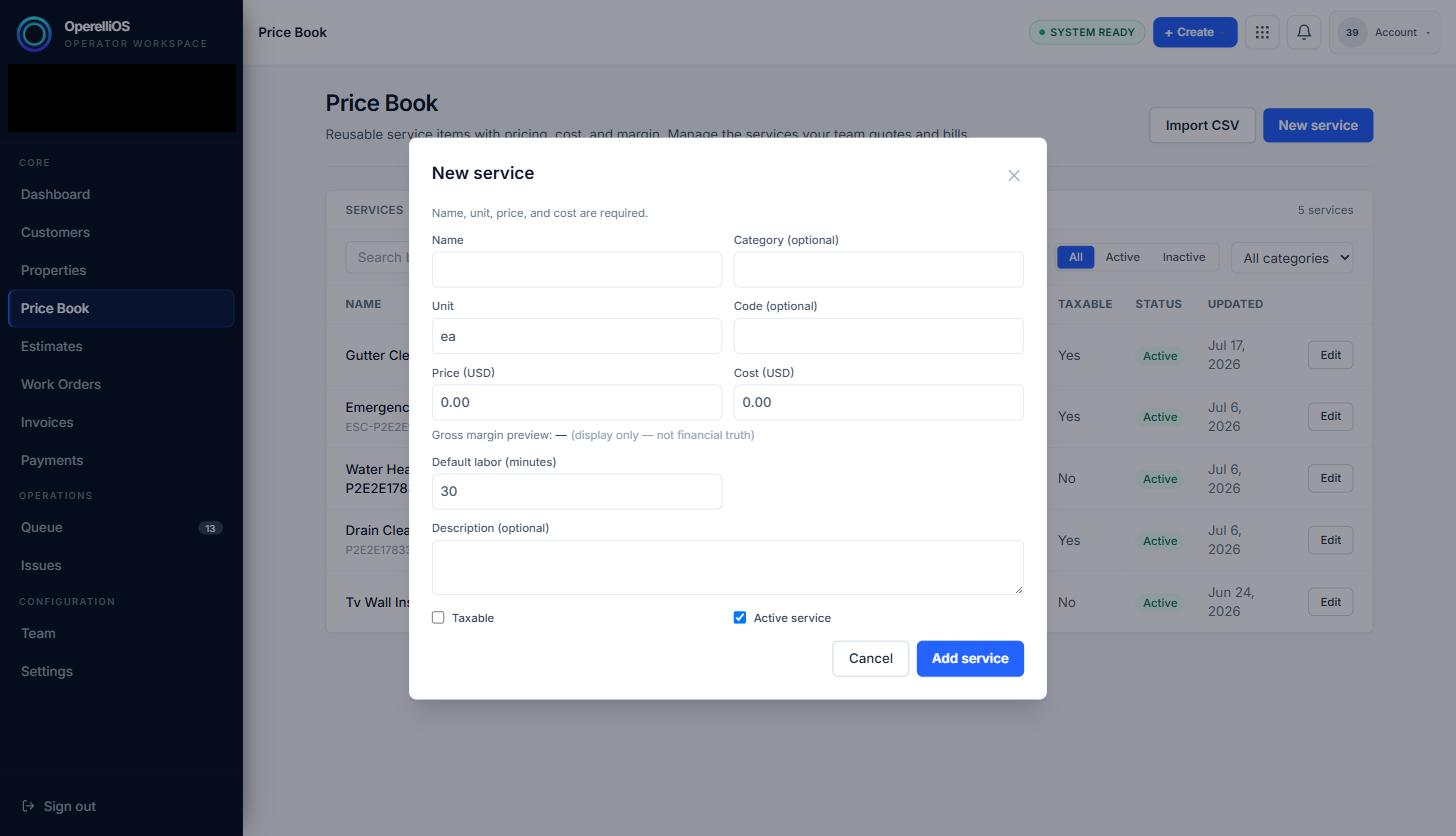
All fields available on a Price Book item, as shown on the New service form.
-
Use the table below for each field, whether it is required, and what it is used for.
| Field | Required | Notes |
|---|---|---|
| Name | Yes | The service name shown throughout the app. |
| Category | No | Free-text grouping label; used by the category filter. |
| Unit | Yes | Defaults to “ea”; can be changed to any unit label. |
| Code | No | An optional short identifier shown next to the name. |
| Price (USD) | Yes | The list price used when the item is added to an estimate. |
| Cost (USD) | Yes | Your internal cost, used only for the margin preview. |
| Gross margin preview | Computed | Display-only calculation from Price and Cost; explicitly labeled not financial truth. |
| Default labor (minutes) | No | Defaults to 30 minutes. |
| Description | No | Optional free-text notes about the service. |
| Taxable | No | Checkbox; unchecked by default. |
| Active service | No | Checkbox; checked by default. Controls the Status column (Active/Inactive) in the list. |
Price Book data provides governed inputs. OperelliOS deterministic logic computes official estimate totals. A preview or catalog hint is not financial truth. AI does not control prices or totals.
Expected result
Section titled “Expected result”You understand what each field on a Price Book item means before creating or editing one.
Common issues
Section titled “Common issues”- Only Name, Unit, Price, and Cost are required — every other field is optional.
- The gross margin preview is not a saved field; it is only shown while the form is open.