
How Price Book Items Are Used in Estimates
Price Book items are the source of the services and pricing you add to a customer estimate, so you do not need to re-type service details on every job.
Who this is for: Owners or staff who build estimates for customers.
Before you begin
Section titled “Before you begin”- You are signed in to your OperelliOS workspace.
- You have at least one active item in your Price Book.
- You have a customer (and optionally a property) to attach the estimate to.
-
Start a New estimate, then select a Customer and Property in the Job context section.
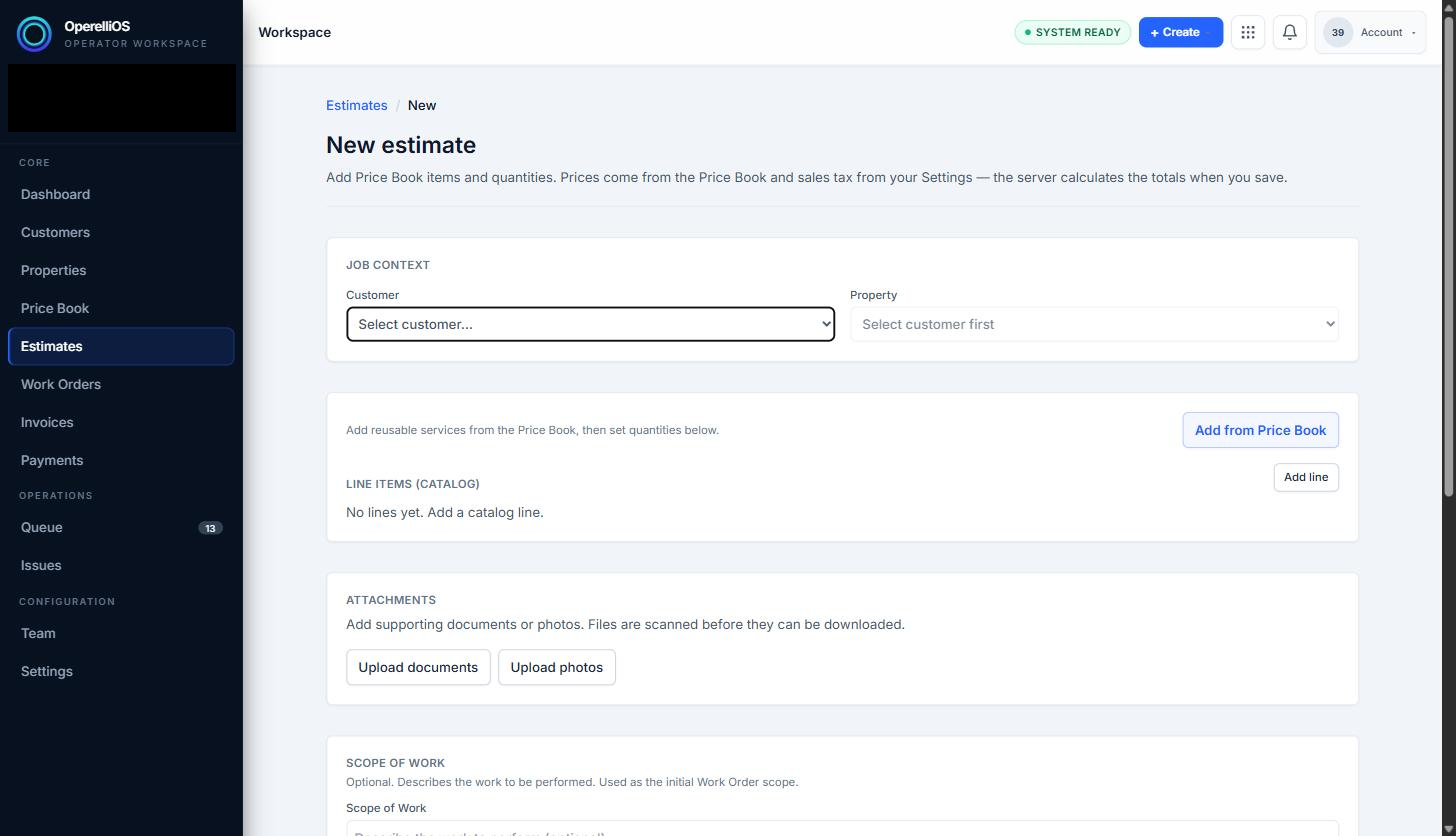
The New estimate page. Line items are added from the Price Book. The interface states that prices come from the Price Book and that the server calculates totals when you save.
-
Click Add from Price Book.
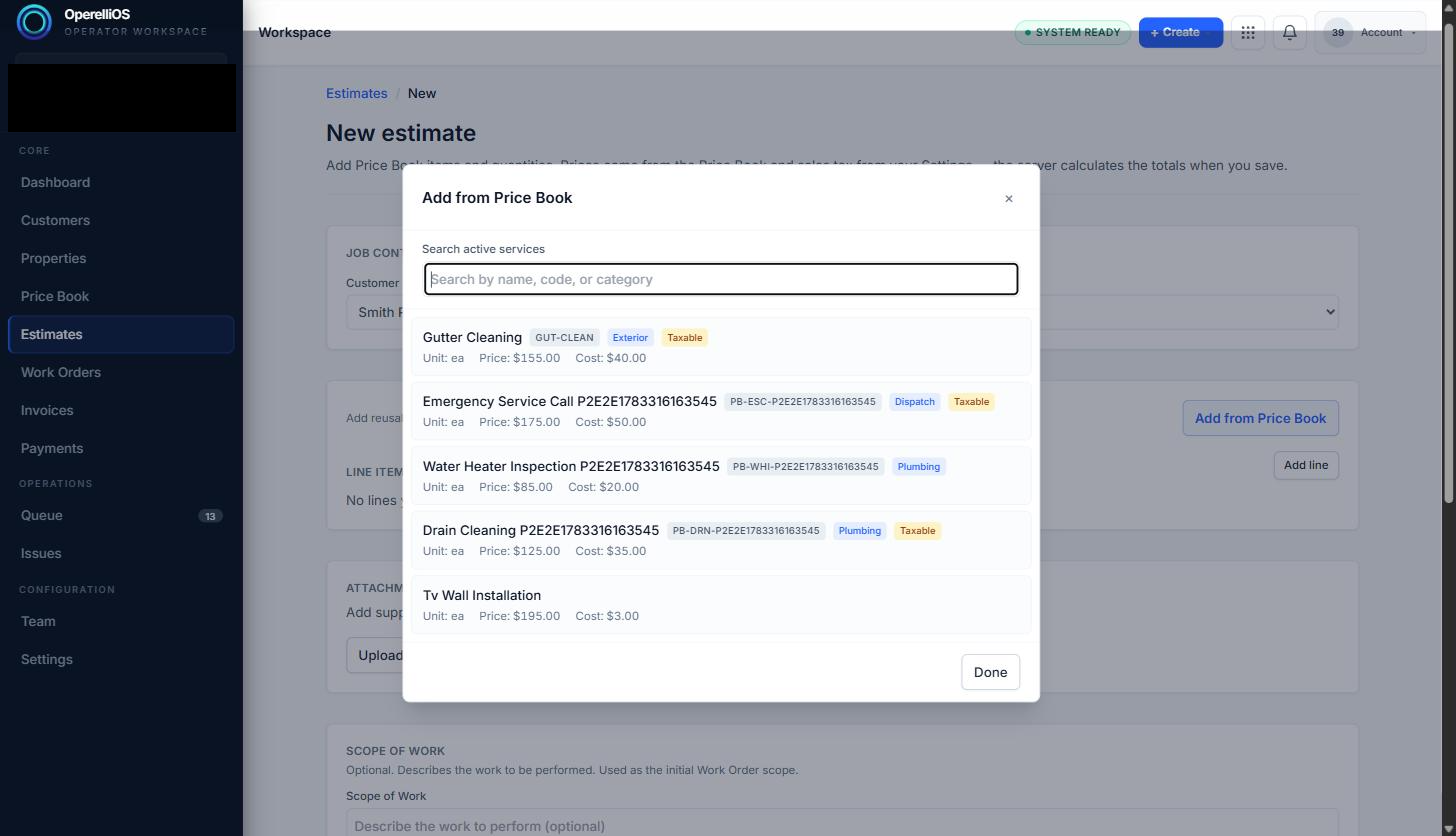
The Add from Price Book dialog lists active services with their code, category, unit, price, cost, and taxable status, and includes a search box.
-
Click a service in the list to add it as a line item, then close the dialog with Done.
-
Back on the estimate, the line item shows the service name, an editable Qty, and a Catalog hint with the list price extended by quantity.
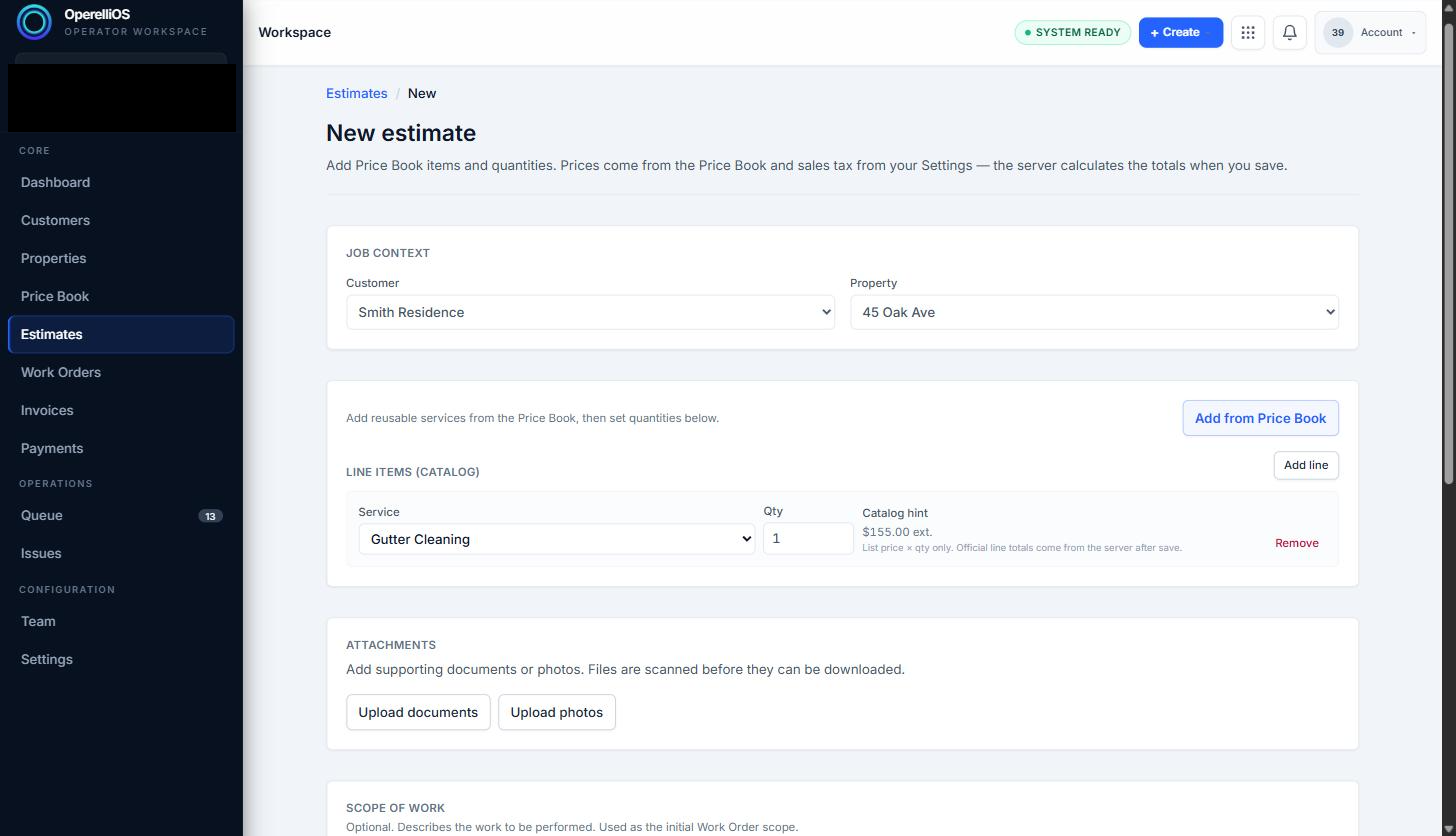
A Price Book item added as a line item. The catalog hint notes that official line totals come from the server after save.
Expected result
Section titled “Expected result”The service you selected from the Price Book appears as a line item on the estimate with its quantity and an estimated (catalog hint) price. The line item’s price and cost are drawn directly from the Price Book item you picked. Price Book data provides governed inputs; OperelliOS deterministic logic computes official estimate totals. A preview or catalog hint is not financial truth. AI does not control prices or totals.
Common issues
Section titled “Common issues”- The catalog hint is list price × quantity only — the app notes that official totals come from the server after the estimate is saved.
- Only active services appear in the Add from Price Book search list.