
How to Create a Price Book Item
Add a new reusable service to your Price Book so it can be selected later on estimates.
Who this is for: Owners or staff who set up service pricing.
Before you begin
Section titled “Before you begin”- You are signed in to your OperelliOS workspace.
- You know the name, unit, price, and cost for the service you want to add — these are required fields.
-
From the Price Book page, click New service in the top right.
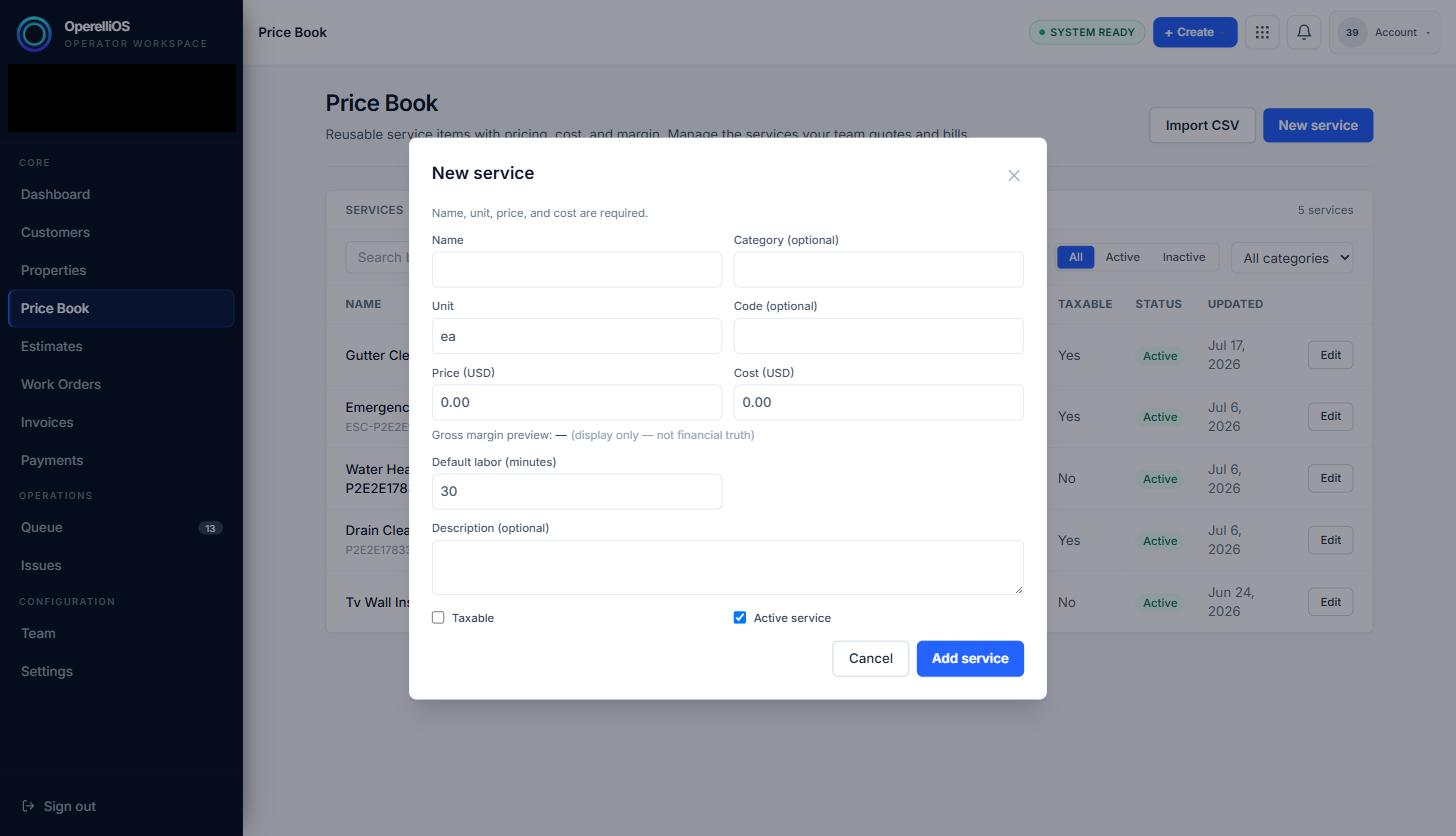
The New service form. Name, Unit, Price, and Cost are required; Category, Code, Default labor, and Description are optional.
-
Fill in the Name, and optionally a Category and Code. The Unit field defaults to “ea” but can be changed.
-
Enter the Price (USD) and Cost (USD). As soon as both are entered, a Gross margin preview appears. That preview is display-only and is labeled as not financial truth. Price Book data provides governed inputs; OperelliOS deterministic logic computes official estimate totals when you save an estimate.
-
Optionally set Default labor (minutes) (defaults to 30), add a Description, and check Taxable if the service is taxable. Active service is checked by default.
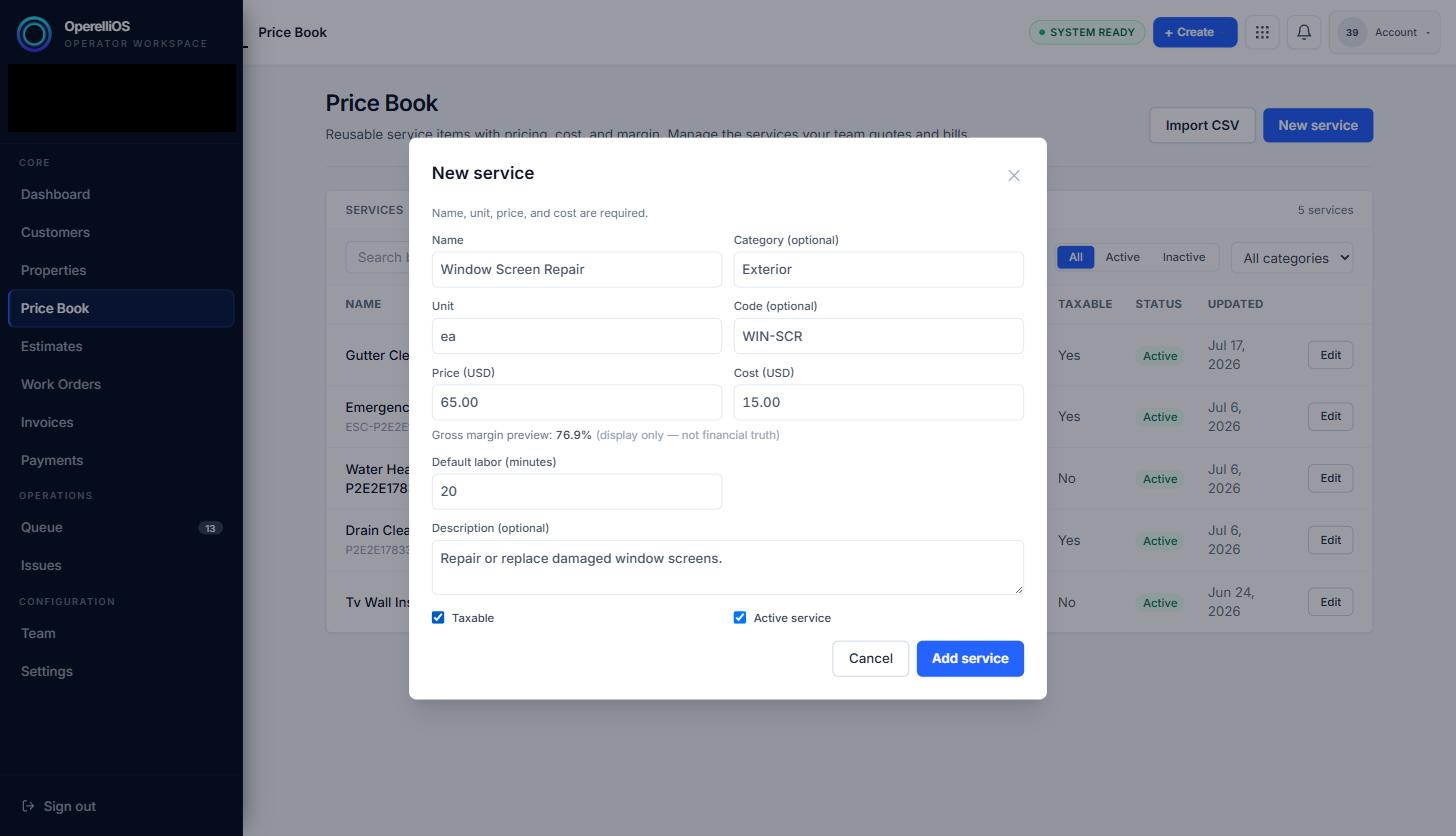
A completed New service form with a live-computed margin preview.
-
Click Add service to save the item.
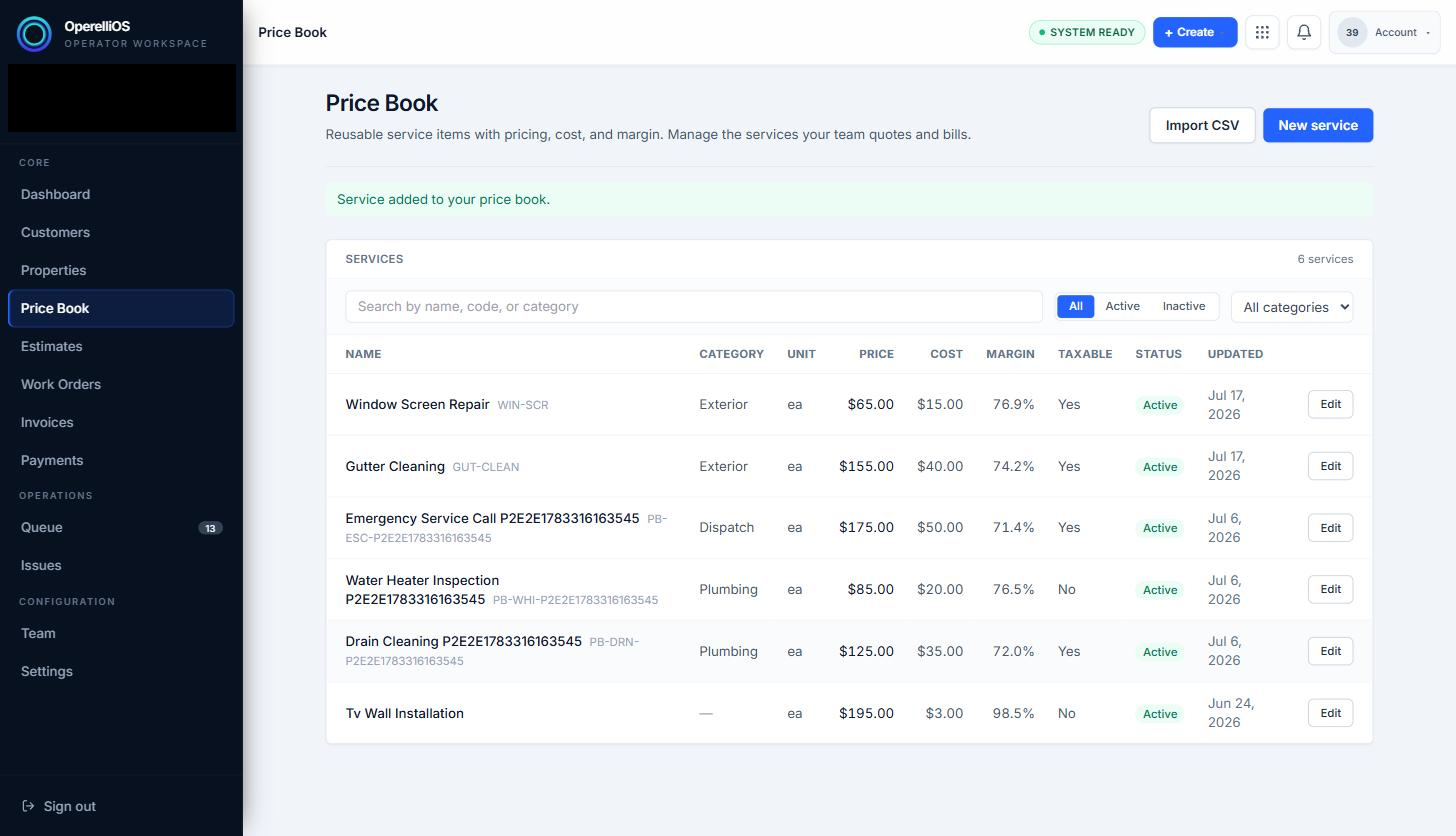
A confirmation banner appears and the new item is added to the top of the list.
Expected result
Section titled “Expected result”A confirmation banner reading “Service added to your price book.” appears, the workspace service count increases by one, and the new item appears at the top of the list with the values you entered.
Common issues
Section titled “Common issues”- Name, Unit, Price, and Cost are required — the form will not save without them.
- The gross margin preview is for reference only while filling out the form; it is not a stored field and is explicitly marked as not financial truth. AI does not control prices or totals.