
How to Find and Review Queue Items
This article covers how to locate a Queue item and open it for review. Filtering by tab and opening a record into its owning module were directly observed. A search box, sort controls, and bulk actions were not present in this environment.
Who this is for: Owners or staff who open Queue items to review them in the owning module.
Before you begin
Section titled “Before you begin”- At least one record in one of the three Queue groupings.
-
Open Queue from the sidebar.
-
Select the tab (Needs action, Ready to progress, or Billing follow up) that matches the kind of record you are looking for.

Filtering the Queue by tab.
-
Read the Item, Type, and Consequence columns to understand what is pending and why.
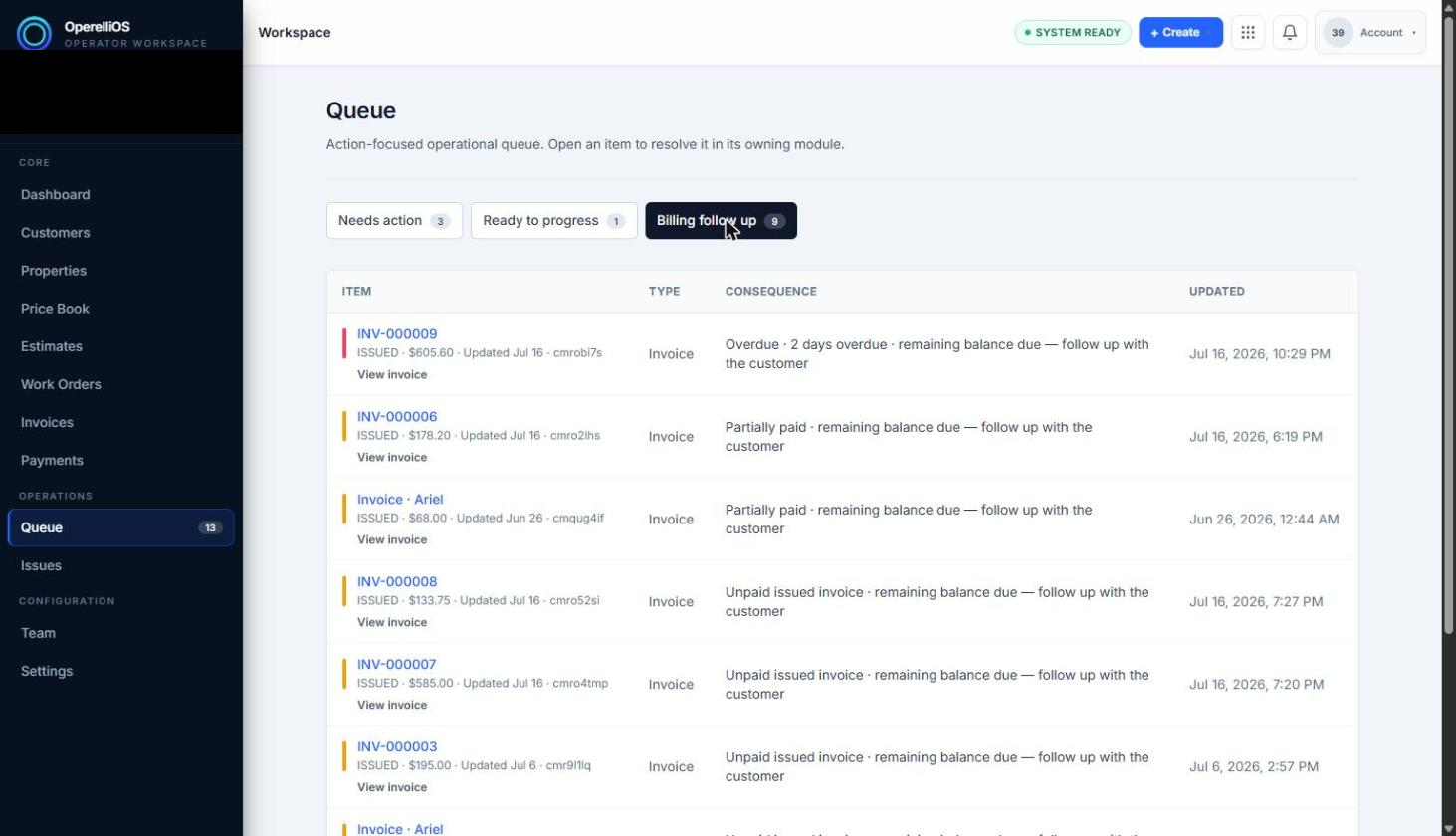
Queue, Billing follow up tab.
-
Click the record’s link (for example View invoice) to open the full record in its owning module.
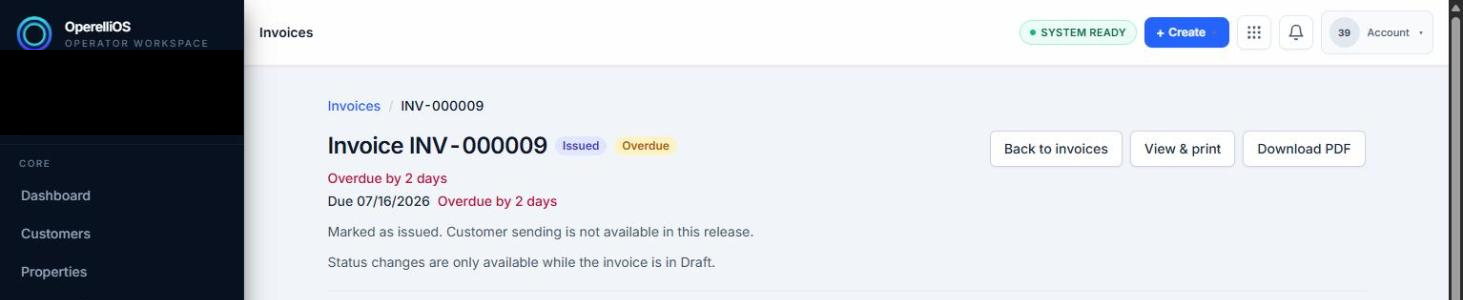
Result of opening a Queue item: the Invoice detail page in its owning module.
Expected result
Section titled “Expected result”Clicking a Queue item’s link navigates away from the Queue page into the corresponding module’s detail page. For an Invoice item, this was observed to open the Invoice detail page directly, breadcrumbed back to Invoices. The Queue list itself does not offer in-place editing controls.
Verified portion
Section titled “Verified portion”Switching tabs to filter the list, and opening a record link into its owning module.
Unverified portion
Section titled “Unverified portion”Search, sorting, bulk actions, exports, saved views, automatic routing, assignment, status changes, and Queue mutation.
Warnings and notes
Section titled “Warnings and notes”- This article does not document editing, resolving, or otherwise mutating a record from within Queue, because Queue only linked out to the owning module.
- Filter/tab labels are not proof of executed workflow transitions.