
How to Add Price Book Items to an Estimate
Add one or more reusable Price Book services to an estimate as line items, so pricing stays consistent with your Price Book instead of being typed manually.
Who this is for: Owners or staff who build estimates.
Before you begin
Section titled “Before you begin”- You are creating or editing a Draft estimate.
- At least one active Price Book item exists in your workspace.
-
On the New estimate page (or an existing draft), click Add from Price Book.
-
In the dialog, search by name, code, or category, or scroll the list of active services. Each result shows its unit, price, cost, and taxable status.
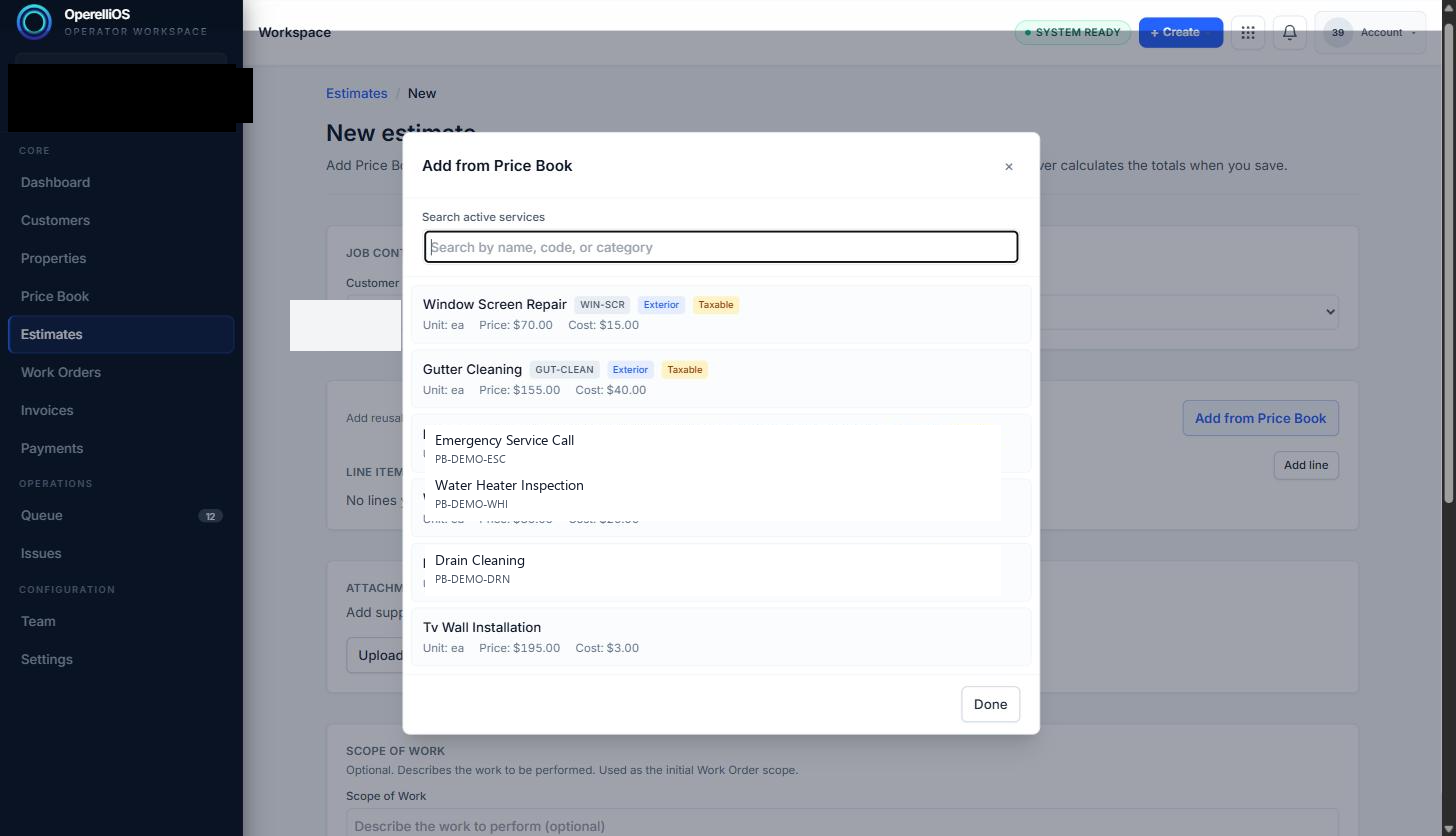
The Add from Price Book dialog lists only active Price Book services.
-
Click a service to add it to the estimate as a line item, then click Done to close the dialog.
-
Adjust the Qty for each line item as needed. A catalog hint updates immediately to show list price × quantity, with a note that official totals come from the server after saving.
-
Save the draft (or save changes on an existing draft) so the server recalculates the official subtotal, tax, and grand total from the Price Book prices you selected.
Expected result
Section titled “Expected result”Each selected Price Book item appears as its own line item with an editable quantity. After saving, the estimate’s server-calculated totals reflect the combined price of all line items. Price Book data provides governed inputs; deterministic OperelliOS logic computes official totals. A catalog hint is not financial truth. AI does not own prices or totals.
Warnings and notes
Section titled “Warnings and notes”- Only active Price Book items appear in the Add from Price Book search results.
- The catalog hint shown while editing is a client-side preview only — it is not the official price and is never set or adjusted by AI.
- Free-text catalog lines added via the separate Add line control were not verified in this batch.