
How to Create a Work Order
Create a Work Order from an Approved Estimate. OperelliOS does not create a Work Order automatically when an Estimate is approved, and there is no standalone create path documented here.
Who this is for: Owners or staff who convert approved estimates into operational jobs.
Before you begin
Section titled “Before you begin”- An Estimate that has reached the Approved status.
- Permission to create Work Orders in your workspace.
-
Open the Approved Estimate.
-
Select Create Work Order.
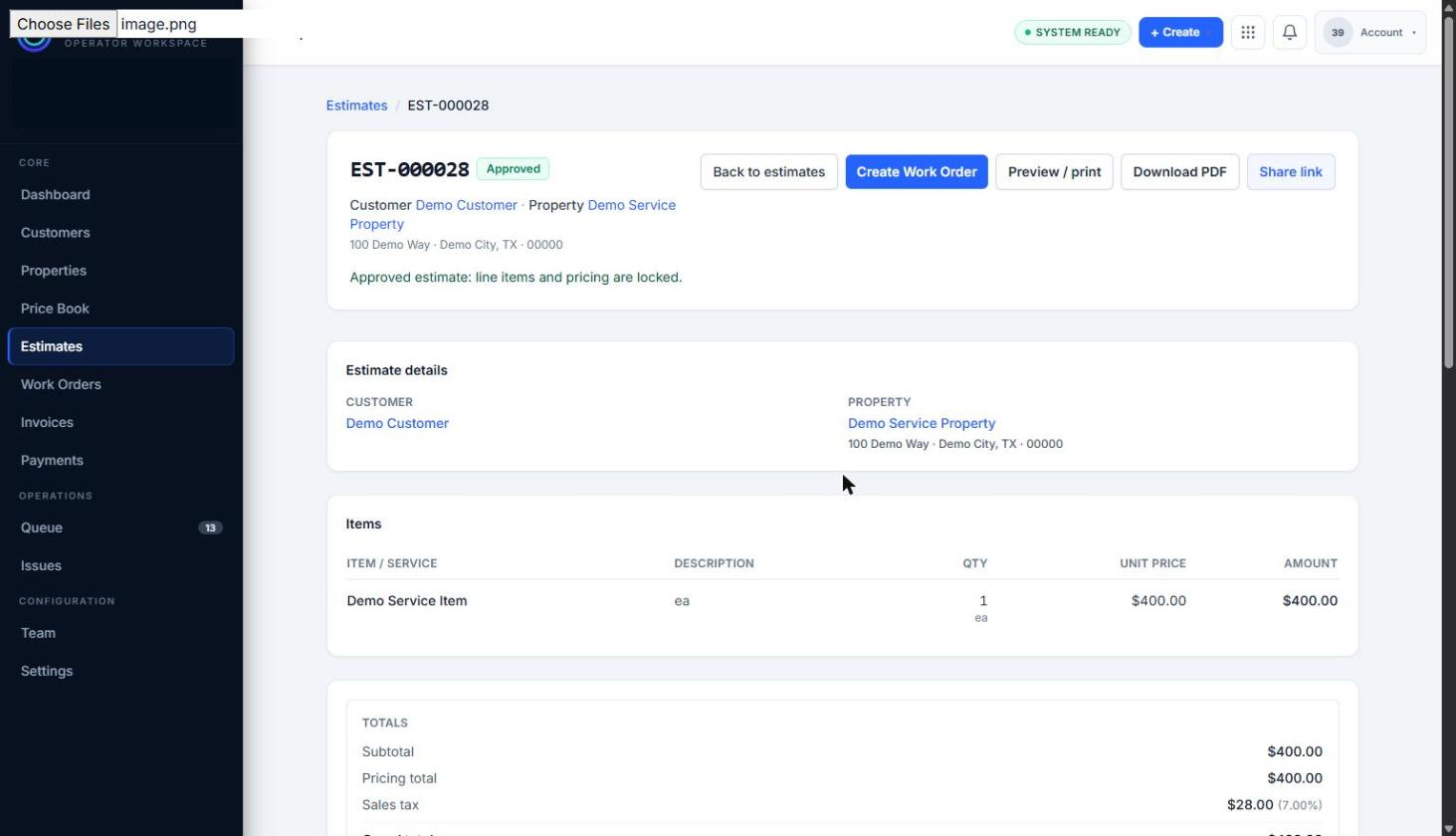
An Approved Estimate shows the Create Work Order control while line items and pricing remain locked.
-
Confirm that the new Work Order opens with the customer, property, and line items carried over from the Estimate, and that the source Estimate remains linked.
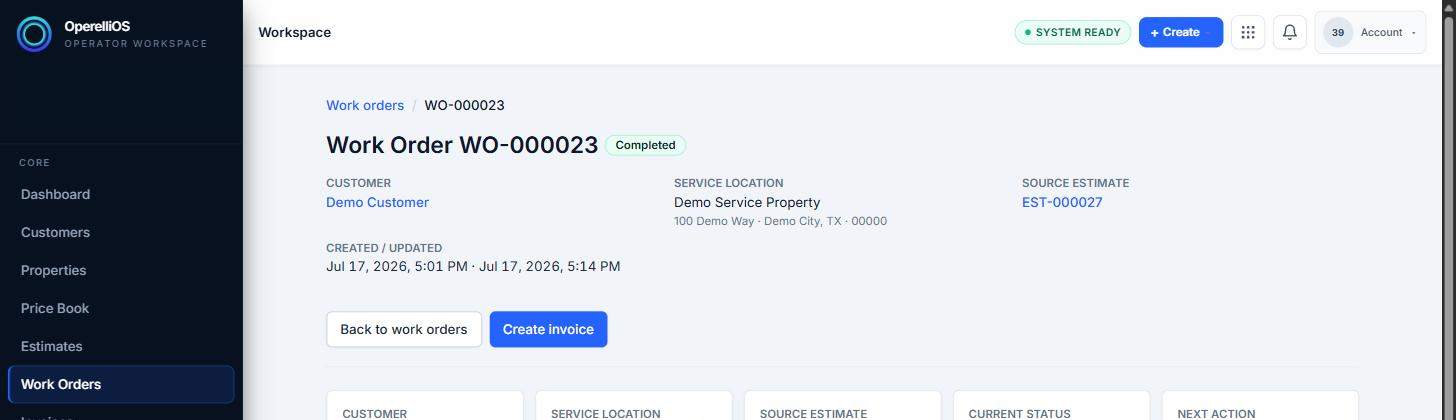
The resulting Work Order remains linked to its source Estimate.
Expected result
Section titled “Expected result”A new Work Order appears, linked to its source Estimate. Creating the Work Order does not change the Estimate’s Approved status and does not create an Invoice.
Warnings and notes
Section titled “Warnings and notes”- This article documents only the estimate-based creation path that was observed.
- Creating a Work Order does not create an Invoice or record a Payment. Invoice and Payment workflows will be documented separately.
- AI does not create Work Orders, change Estimate status, or own financial totals.