
How to Find and Open a Work Order
Use the Work Orders list to search or filter for a job, then open a row to view its details.
Who this is for: Owners or staff who locate existing Work Orders.
Before you begin
Section titled “Before you begin”- Access to the Work Orders area of your workspace.
-
Open the Work Orders list.
-
Use the search field to search by Work Order number, customer, property, estimate, or status, or use the status tabs to filter the list.
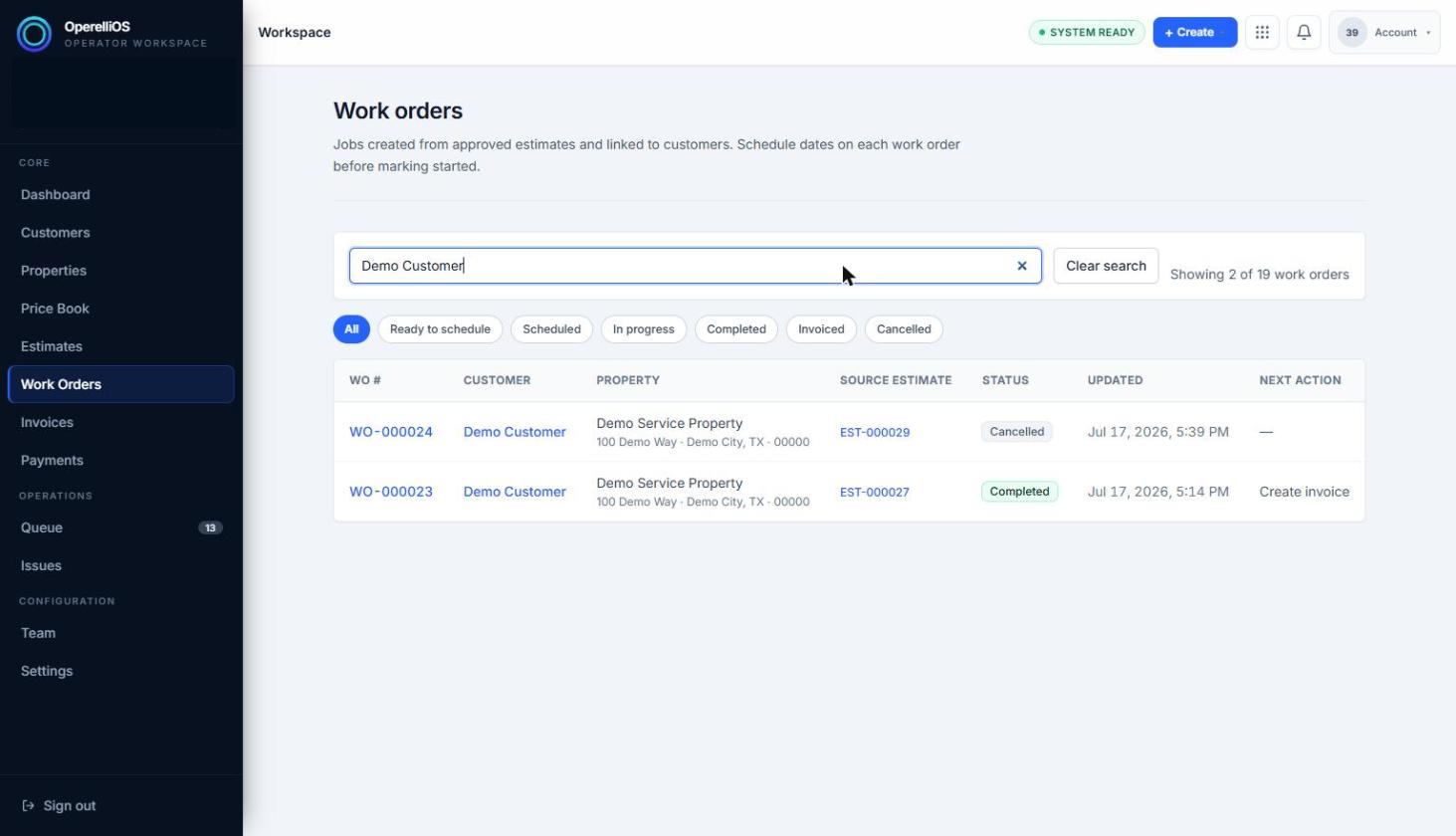
The Work Orders list shows matching rows after filtering to a synthetic customer.
-
Select a Work Order row to open its detail view.
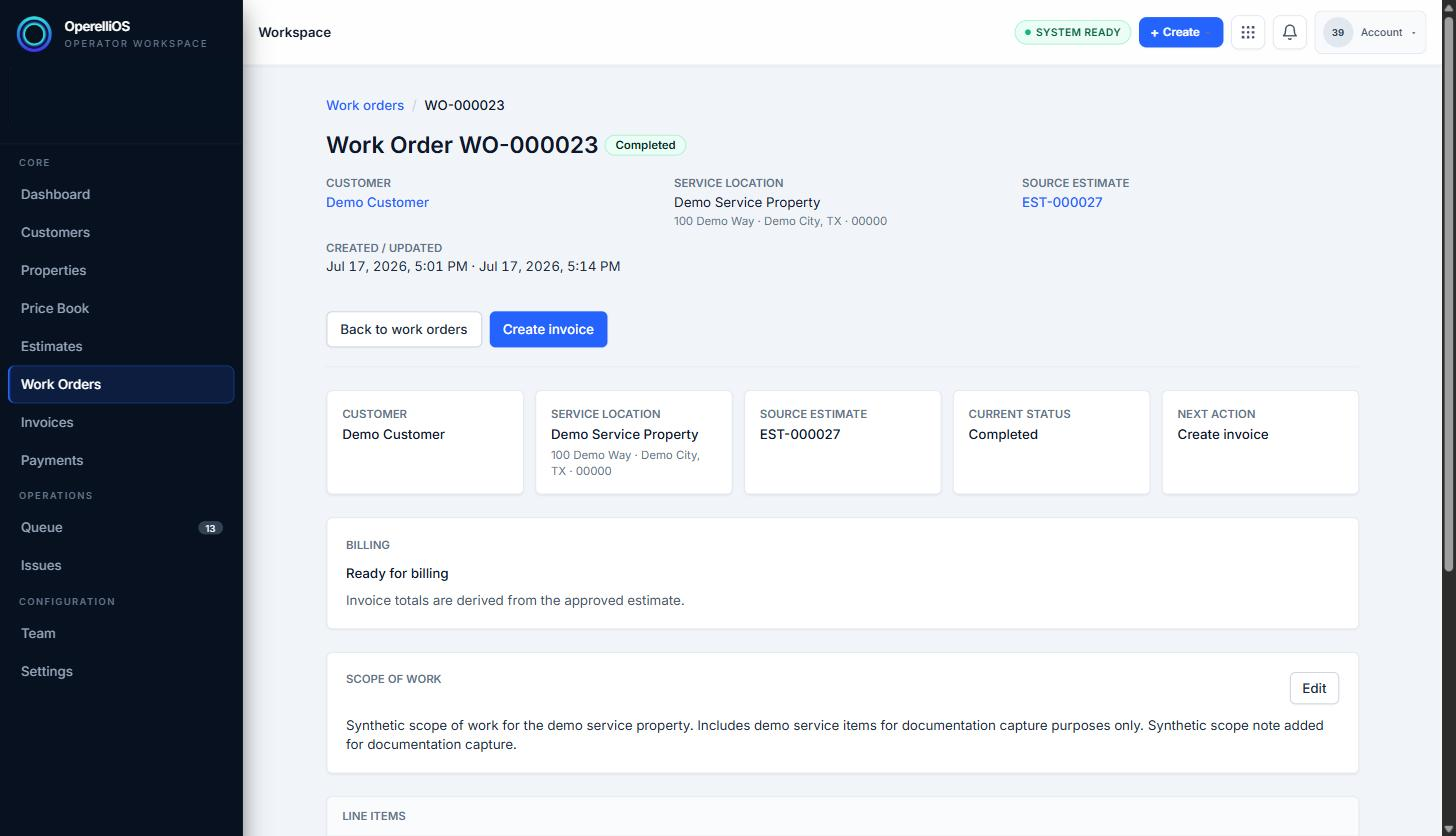
Opening a row shows the full Work Order detail view.
Expected result
Section titled “Expected result”The list narrows to matching results, and selecting a row opens the detail view for that Work Order.
Warnings and notes
Section titled “Warnings and notes”- This article documents search, status filters, and opening detail only. Bulk actions, export, saved views, advanced filters beyond the observed status tabs, and dispatch queues were not observed and are not claimed.
- Invoice and Payment behavior is not documented here.