
How to View and Print an Invoice
The View & print action opens a printable document version of the Invoice, laid out for sharing or printing, separate from the interactive detail view.
Who this is for: Owners or staff who need a print-ready Invoice document.
Before you begin
Section titled “Before you begin”- An existing synthetic Invoice.
-
Open the Invoice detail view.
-
Select View & print.
-
Review the printable layout: Bill To and Service/Property, Invoice Date and Due Date, Source (Estimate and Work Order references), a Description/Qty/Rate/Amount table, and the Subtotal/Sales tax/Total/Paid/Balance due summary.
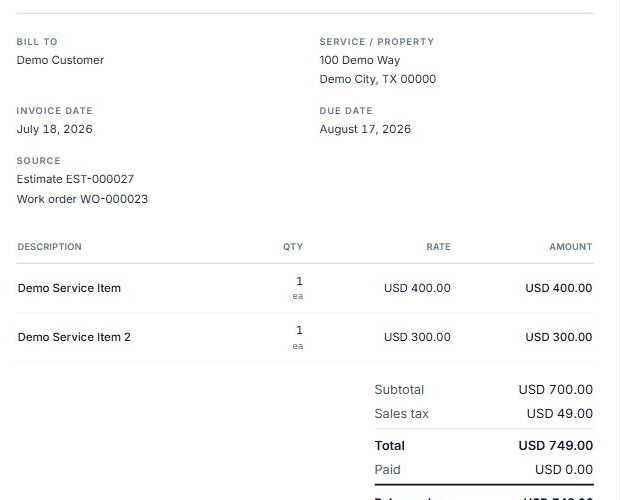
The printable Invoice layout: customer, property, dates, source, line items, and totals.
-
Review Notes and Terms & Conditions if present.
-
Use the Print control to invoke the browser’s print dialog, or select Back to invoice to return. Physical printing is not required to complete this Help article.
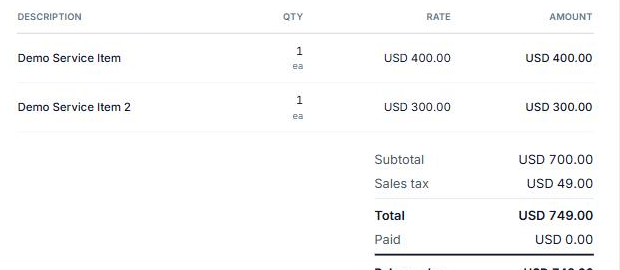
The line items and totals section of the printable layout.
Expected result
Section titled “Expected result”A printable document reflecting the same customer, property, source, line items, and totals as the interactive Invoice, ready to print via the browser’s native print dialog.
Warnings and notes
Section titled “Warnings and notes”- This article does not require completing a physical print; only reaching the print-ready layout and confirming the Print control is documented.
- The live product’s printable document includes a business branding header (business name, logo, and address) above the invoice body. That header is specific to each workspace’s own business settings and is intentionally excluded from the screenshots in this Help article. Your own workspace’s branding will appear when you print or view your own invoices.
- Contact and payment information shown at the bottom of the printable document reflects each workspace’s own settings and has also been excluded from these screenshots.
- This article does not document Invoice email delivery or public Invoice sharing.