
How to View and Update a Price Book Item
Open an existing Price Book item to review or change its details, such as price, cost, or active status.
Who this is for: Owners or staff who maintain service pricing over time.
Before you begin
Section titled “Before you begin”- You are signed in to your OperelliOS workspace.
- The item you want to update already exists in the Price Book.
-
From the Price Book list, click Edit on the row for the item you want to change.
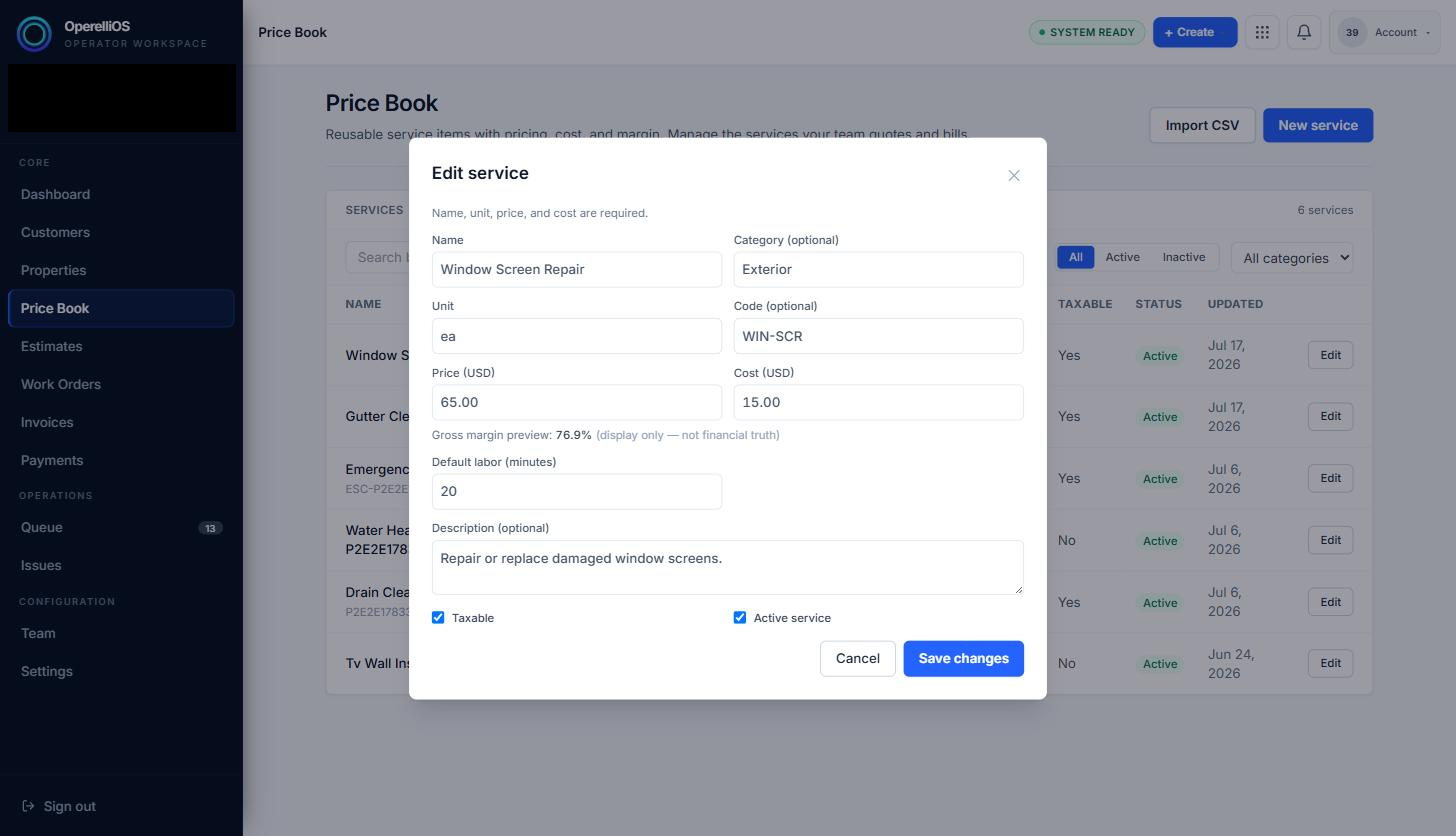
The Edit service form opens pre-filled with the item’s current values.
-
Change any field: Name, Category, Unit, Code, Price, Cost, Default labor, Description, Taxable, or Active service. The gross margin preview recalculates live as Price or Cost change. That preview is informational only and is not financial truth.
-
Click Save changes.
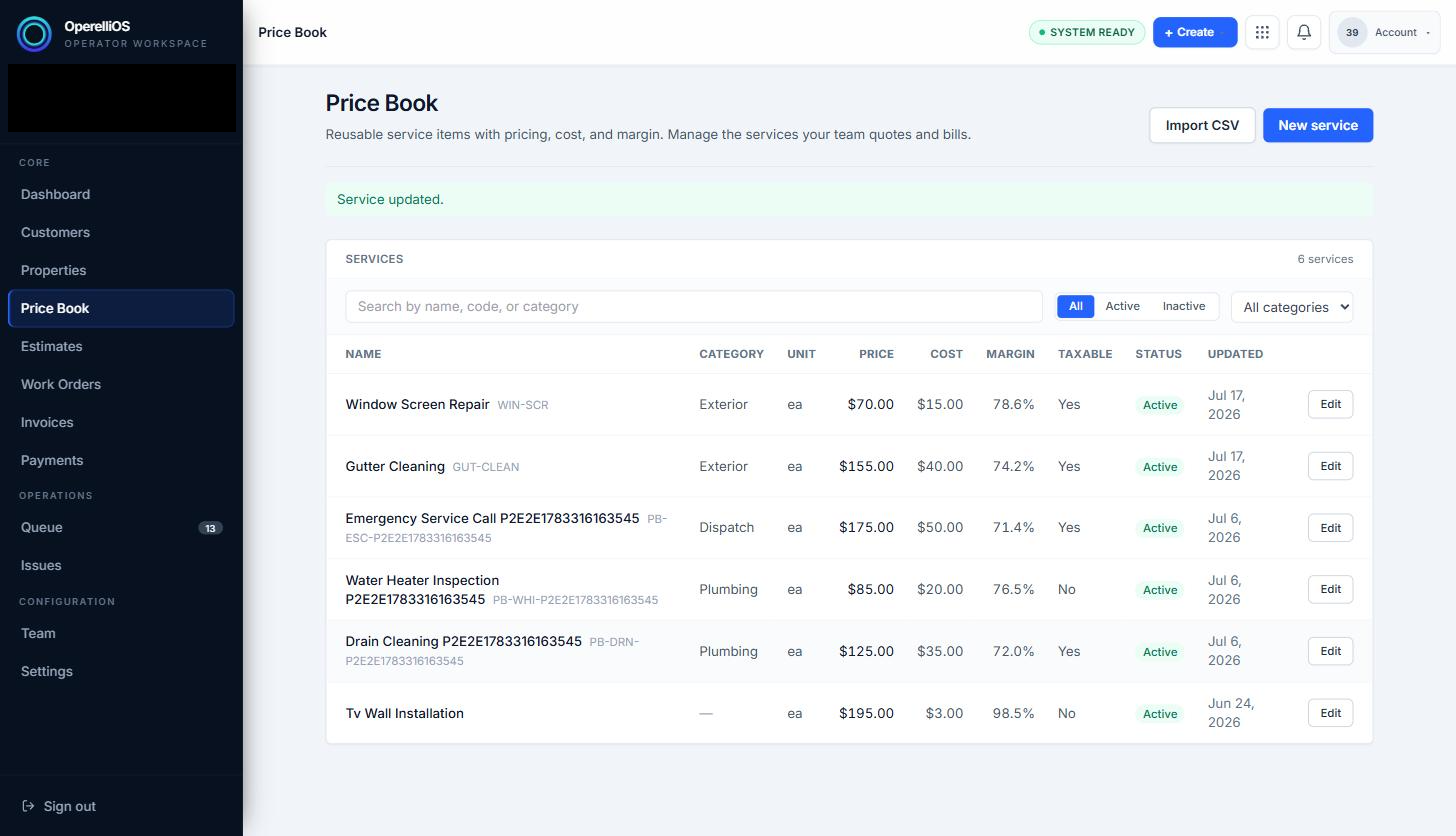
A confirmation banner reading “Service updated.” appears, and the row reflects the new values.
Expected result
Section titled “Expected result”A confirmation banner reading “Service updated.” appears, and the row in the list shows the updated price, cost, margin, or other changed values immediately.
Common issues
Section titled “Common issues”- Name, Unit, Price, and Cost remain required when editing, the same as when creating an item.
- Unchecking Active service does not delete the item — see the Status column to confirm whether an item is Active or Inactive.