
How to Record a Payment
The verified path documented here starts from the Payments area New payment action. It lets you select a customer, allocate an amount received across that customer’s unpaid Issued invoices, and save the result as a Payment Record.
Who this is for: Owners or staff who record a manual/synthetic payment against an Issued invoice.
Before you begin
Section titled “Before you begin”- A customer with at least one Issued invoice carrying a balance due.
- Access to the Payments area.
-
Open the Payments area and select New payment.
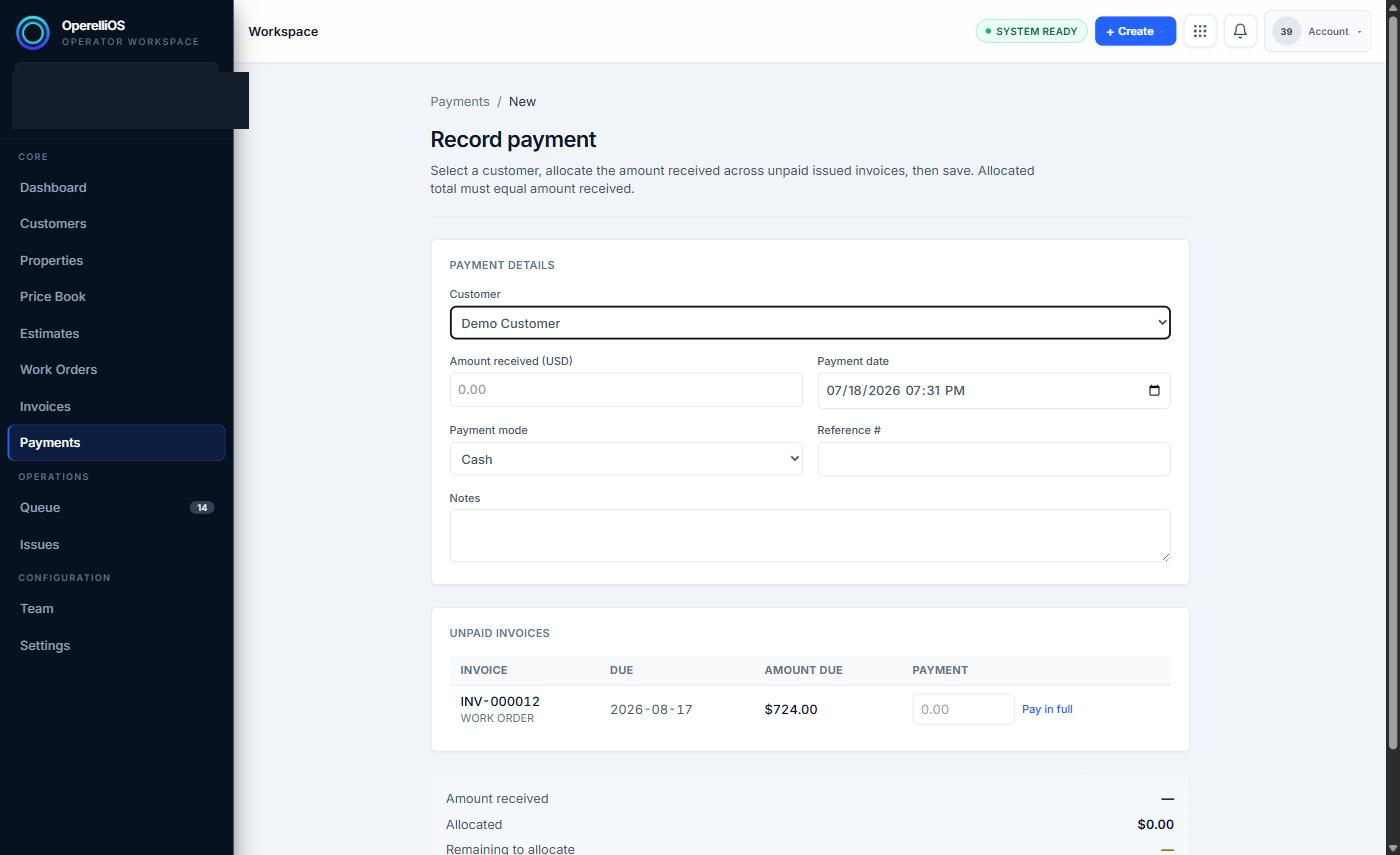
The Record payment form after selecting a customer, with unpaid Issued invoices listed.
-
Choose the customer from the Customer dropdown. The unpaid Issued invoices for that customer load automatically.
-
Enter the Amount received, or use the Pay in full link next to an invoice row to fill both the invoice’s payment allocation and the overall amount received.
-
Set the payment date (defaults to the current date and time).
-
Select a payment mode from the options visible in the product: Cash, Check, Zelle, Venmo, Card (manual), Other. Selecting Check reveals an additional Check number field. In this capture, Check was used for the saved payment.
-
Optionally enter a Reference # and Notes.
-
Confirm the Allocated total equals the Amount received total (the form shows Remaining to allocate).
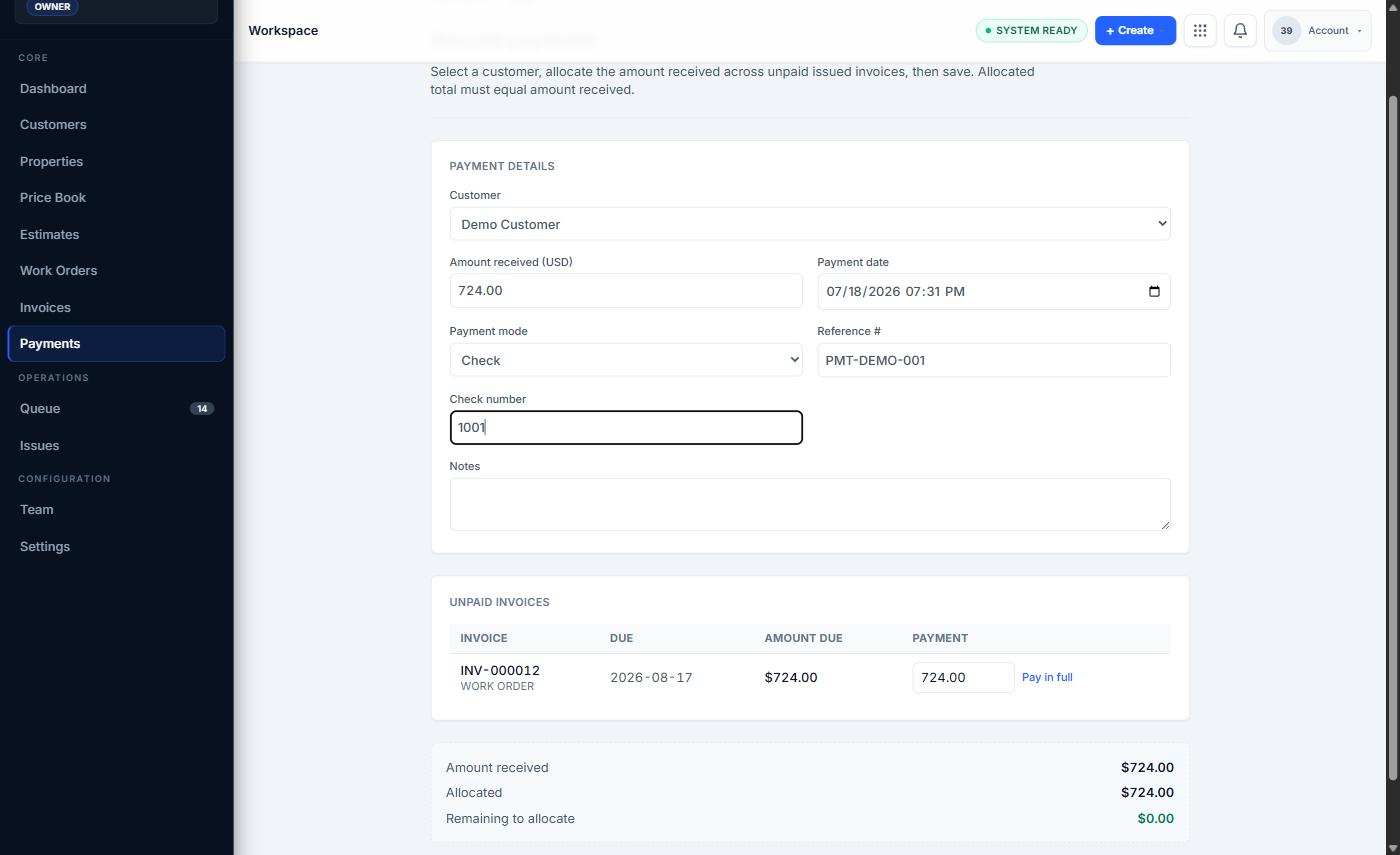
A filled Record payment form using Check, with allocated total equal to amount received.
-
Select Save as Paid.
-
Review the resulting Payment Record: Payment #, status (Recorded), amount, method, reference, customer, property, and the Invoice Allocations table showing the invoice’s new balance and status.

The Recorded status immediately after saving a Payment Record.
Expected result
Section titled “Expected result”A new Payment Record in the Recorded status, linked to the correct customer and invoice, with the linked Invoice’s paid amount, balance due, and payment status updated accordingly. In this capture, after the full remaining amount was recorded, the Invoice moved to a $0.00 balance and a Paid status.
Warnings and notes
Section titled “Warnings and notes”- Only the Payments-area New payment path was directly observed. Recording a payment from Invoice detail was not verified in this capture (the Invoice-detail Record Payment path is deferred).
- Card (manual) is a record-keeping mode only in this capture. No card payment was processed. No ACH payment was processed.
- Deterministic OperelliOS logic owns the Payment Record amounts and resulting invoice balances. AI does not control payment creation or invoice payment state.